A Home Assistant dashboard on an old Kindle
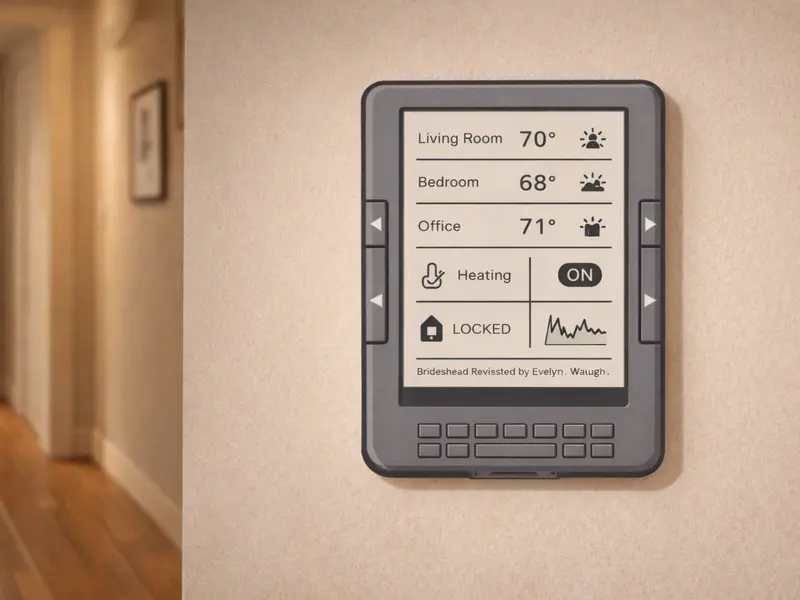
Live sensor data, heating, door locks, and energy use — on a screen that barely uses power and never shouts for attention.
Hard difficulty Free guide
If you’re already running Home Assistant, the appeal of this one is immediate: a soft-lit e-ink screen showing you the house’s state at a glance, sitting on the kitchen wall, using a fraction of the power a spare tablet would consume. Seeed Studio’s comparison of e-ink dashboard options places repurposed Kindles firmly in the “cheapest and most hackable” category, which is exactly where you want to be if you already own one.
This is the most ambitious of the free projects on oldkindle.com. It’s marked hard because it assumes a working Home Assistant install and comfort with YAML configuration — not because the Kindle side is hard (it isn’t). If you’re new to Home Assistant, start there first, get it working, then come back.
What the finished thing does
A wall-mounted Kindle wakes on a schedule (every few minutes, or on demand) and pulls a pre-rendered PNG image of your Home Assistant dashboard from your Home Assistant server. It displays that image, goes back to sleep, and waits for the next refresh. Because the e-ink screen holds the image with zero power, the only cost is the brief moment of refreshing.
Typical dashboard contents:
- Temperature and humidity from a handful of room sensors
- Current heating set-point and boiler status
- Who is home (from presence detection)
- Solar production and battery state of charge, if you have them
- Door and window state
- Washing machine and dishwasher cycle state
- Tomorrow’s bin collection and weather forecast
The point is not to replace the Home Assistant web interface. You still control things from your phone. The point is to have a glanceable “how is the house right now” view that your household can look at without unlocking anything.
What you’ll need
- A working Home Assistant install on a Raspberry Pi, an old PC, or a NAS. Out of scope for this page.
- An affected Kindle, jailbreakable (Paperwhite 1st gen, Kindle Touch, and similar).
- A WinterBreak jailbreak from kindlemodding.org.
- The kindle-dash script (community project, maintained on GitHub) or equivalent — the thing that renders your dashboard to a PNG on the Home Assistant side.
- A wall mount or shelf and some thought about cable routing.
How it works
- On the Home Assistant server, a small script renders your dashboard to a PNG at the Kindle’s native resolution. The dashboard definition is a simplified version of your Lovelace dashboard — you pick which cards you want to be glanceable.
- The PNG is served on your local network via Home Assistant’s own web server.
- The jailbroken Kindle runs a cron job that wakes every few minutes, fetches the PNG over WiFi, and paints it to the screen with
eips. - The Kindle sleeps again until the next refresh.
Refresh rates of 2–5 minutes feel ambient and keep battery life in the multi-week range. Faster refresh rates are possible but drain the battery faster without adding much value for this kind of view.
The three setup approaches
Seeed Studio’s comparison identifies three broad approaches for e-ink Home Assistant dashboards in general, two of which apply to Kindles:
- Pure browser mode. The Kindle’s experimental browser loads a URL on your Home Assistant server that returns an image. No extra software on the Kindle needed. Simplest to set up, least battery-efficient.
- Jailbroken + eips. A cron job fetches the PNG and paints it directly to the framebuffer with the
eipstool. Needs a jailbreak but is significantly more battery-efficient and gives you full control over refresh timing. - KOReader plugin. Some KOReader community plugins add Home Assistant integration. This is the newest path and potentially the cleanest if you’re already using KOReader as your reader.
Which Kindle models does this work on?
Any jailbreakable e-ink Kindle. Paperwhite 1st gen is the most popular target because of its higher resolution and backlight (useful in a dim hallway). Kindle Touch and Kindle 4/5 also work. Kindle Fire tablets have colour LCD and are a different project entirely — they can run a normal Home Assistant companion app, no repurposing needed.
Gotchas and honest notes
This is the one project where a working charging cable matters
Every other repurposing idea can tolerate a Kindle that gets taken down for a recharge every week or two. A Home Assistant dashboard is most useful when it’s always up, always current. Build the mount with the charging cable routed through, so the Kindle is always at least trickle-charging. This turns the project from “delightful for two weeks” into “permanent piece of household infrastructure”.
- Design the dashboard for e-ink from the start. High-contrast. Big text. No gradients. No small icons. No red/green indicators (e-ink is grayscale). Rethink what each tile shows.
- Refresh latency is always at least one cycle. If you toggle a light at the wall switch, the dashboard will show the change up to 2–5 minutes later. This is fine for ambient display; it’s wrong for realtime control.
- Security: the Kindle talks to Home Assistant over your local network, so keep Home Assistant behind your LAN firewall. Don’t expose the dashboard-PNG endpoint to the public internet.
- Do not factory-reset the Kindle — see the warning page. If the dashboard breaks, re-run the setup; don’t reset.
Where to go next
Start with Seeed Studio’s overview at seeedstudio.com. Their comparison is the clearest single source for the landscape. From there, look up the kindle-dash project on GitHub, which is the most common starting point for the server-side rendering script.
The Old Kindle Survival Guide has a dedicated chapter on Home Assistant dashboards, including a known-good configuration for Paperwhite 1st gen, the Python rendering script, and a troubleshooting section for the commonest problems (white-screen refreshes, WiFi drops, and battery that drains faster than expected).
Other projects you might like
- Weather dashboard — the simpler cousin of this project, good if you don’t run Home Assistant
- Literary clock — for a less informational, more ambient feel
- Free 70,000-book library — for when you’d rather the Kindle do its original job, better
Sources for this page: Seeed Studio — e-ink Home Assistant dashboard comparison (27 Oct 2025); community project kindle-dash on GitHub; kindlemodding.org (jailbreak). Home Assistant is a trademark of the Home Assistant Open Source Foundation. Not affiliated with Amazon or Home Assistant.